9.2. Real robot
This section describes a typical steps to use the dVRK. It assumes that your dVRK is fully setup, i.e. controllers are connected, software is compiled and all the configuration files have been generated and calibrated.
For first time users, we also have some tips.
9.2.1. Powering on controllers
First thing first, you must make sure all your dVRK controllers are powered using the black switch [0/1] next to the power cord (110/220V). We recommend using a single power strip reserved for all your dVRK controllers. This way you can leave all the switches to ON/1 and easily turn on all your controllers simultaneously.
Note
The dVRK controllers are quite stable and rarely need to be rebooted. At Johns Hopkins we keep them powered 24/7.
Warning
The very first dVRK groups (circa 2012) have FPGA boards that can draw power from the FireWire cables. Unfortunately the power from the PC over FireWire is not enough to power multiple FPGA boards. For these groups, unplug the FireWire cable to the PC before powering the controllers.
Once the controllers are powered, you need to make sure they booted properly. On Classic controllers, the LEDs A and B (and C and D) should be going back and forth from green to red. On Si controllers the PL LED should be blinking green. The booting process takes a bit longer on newer controllers (FPGA 3 based). Once all your controllers are ready, you can check the connection with your PC.
See also:
Classic controllers power switch and LEDs
Si controllers power switch and LEDs
9.2.2. Checking connection to controllers
The best way to check the connection between the controllers and your PC is to
use qladisp in a terminal. If your controllers are connected using FireWire
only, use:
qladisp -pfw
If you are using an Etherner connection to the first controller and then FireWire between the controllers, use:
qladisp -pudpfw
Hint
If qladisp is not found, remember to source your ROS workspace. Something
like source ~/ros2_ws/install/setup.bash.
The output of qladisp will provide the list of FPGA boards connected, their
board Id as well as firmware version. It also shows the type of motor power
board used (QLA1, DQLA, dRAC). qladisp is a bit verbose so, you might have to
scroll up to see the list of boards found. The output you should be looking for is something like:
BasePort::ScanNodes: building node map for 8 nodes:
  Node 0, BoardId = 8, FPGA_V1, Hardware = QLA1, Firmware Version = 8
  Node 1, BoardId = 9, FPGA_V2, Hardware = QLA1, Firmware Version = 8
  Node 2, BoardId = 6, FPGA_V1, Hardware = QLA1, Firmware Version = 8
  Node 3, BoardId = 7, FPGA_V1, Hardware = QLA1, Firmware Version = 8
  Node 4, BoardId = 0, FPGA_V1, Hardware = QLA1, Firmware Version = 8
  Node 5, BoardId = 1, FPGA_V1, Hardware = QLA1, Firmware Version = 8
  Node 6, BoardId = 2, FPGA_V1, Hardware = QLA1, Firmware Version = 8
  Node 7, BoardId = 3, FPGA_V1, Hardware = QLA1, Firmware Version = 8
BasePort::ScanNodes: found 8 boards
If the boards are not found, please check the sections for testing connectivity for Ethernet or FireWire. You won’t be able to use the dVRK until you figure out the connection issue(s).
Hint
There is a know issue regarding FireWire discovery. After you power your controllers, you might need to unplug, wait 5 seconds and, re-plug the FireWire cable between your PC and the first dVRK controller. You can disconnect that cable from the PC or from the first controller.
See also:
Connectivity section
qladisp application
9.2.3. Start with your configuration files
Make sure you use the correct configuration files! On the Classic arms, there is
no way to query the arm’s serial number. Nothing prevents you from using the
configuration files for another system or another site. Si PSMs and ECMs store
their serial number on the ESPM, the dVRK software will ensure that you’re using
the correct configuration files. In a terminal, make sure you sourced your
workspace’s setup.bash and go in your configuration files directory:
source ~/ros_ws/install/setup.bash
cd ~/ros2_ws/src/dvrk/dvrk_config_XXX # replace XXX with your organization's acronym
Warning
Using the incorrect configuration files will lead to lower accuracy and potentially damage your dVRK.
To start the main dVRK system application:
# assuming you are in your configuration files directory
ros2 run dvrk_robot dvrk_system -j sytem-XXX.json # replace XXX with your configuration
See also:
Configuration section
9.2.4. Testing motor power
Once you started the dVRK system application, try to turn on
motor power on the controllers with either the GUI or the ROS topic power_on.
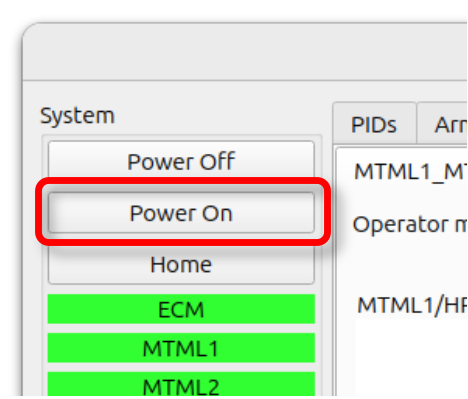
Power On button in dVRK GUI
If everything goes well, the graphical user interface should display green buttons in the IO tabs (except for the MTM gripper since it is not powered). The LEDs on the front of the dVRK controllers should also indicate that the motor power is on.
Note
“Turning power on” can be a bit confusing. The controllers need to be connected to a 110/220V and physically turned on using the switch on the back. At that point the FPGA (logic board) is working and communicating with the PC. Then, from the PC, one can send commands to turn on the motor amplifiers (on QLA or dRAC boards). In this document, we try to specify motor power as much as possible.
If you can not turn on motor power, check the E-Stop.
See also:
9.2.5. Homing
To home the dVRK, use the GUI or the ROS topic home.
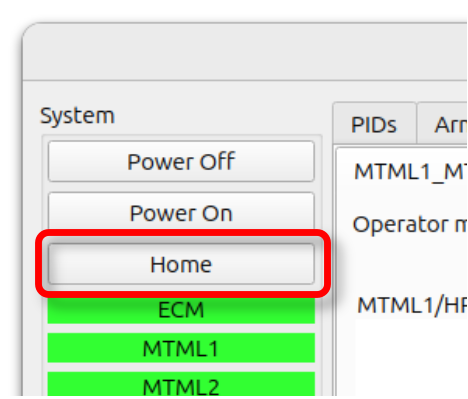
Power On button in dVRK GUI
When you home the dVRK, a few things should happen:
Position control will start for all active arms.
MTMs will perform a calibration routine for the roll and move to their zero position.
PSMs and ECMs shouldn’t move! It’s normal.
If the PSM has a sterile adapter and no instrument, it will move the insertion stage up and engage the sterile adapter.
If the PSM has an instrument installed and not inserted (all the way out/up), the system will engage the instrument.
For the ECM Classic, ECM Si and PSM Si, the brakes will be released. The brakes will stay released while the arms are enabled. They stay in position using their motors even when not moving.
9.2.6. Monitoring
The dVRK is not bullet-proof, it is a fairly experimental system using rather old robots. It is important to keep an eye on a few things while using it:
The robot should be quiet! If you hear noises or see vibrations, stop and investigate! There is an exception, the MTM wrist control is not great and will occasionally trigger small vibrations.
IO frequency: The dVRK IO/PID thread is using “soft real-time”. It is at mercy of connection issues as well as the overall load on your computer. To check the IO frequency, you can use the GUI timing widgets or the ROS topics period_statistics of each software component.
Computer load: The dVRK controller is sharing all the resources of your computer, make sure the overall load is not too high. You can use the command line
htopto monitor memory usage, CPU load, IOs…Amplifiers temperature. This shouldn’t be an issue for recent dVRK controllers since fans should have been installed. You can check the temperature in the IO widget.
Note
There are some checks implemented in the dVRK code, but the thresholds are fairly high to avoid false negative. If your system is unstable make sure CPU load, timing, temperatures… are fine.
9.2.7. Setting up the instruments and endoscope
Videos on YouTube:
PSM Classic: https://youtu.be/yeQKU2_O6uo
PSM Si : https://youtu.be/F7cOVPVq_TY
ECM Si: https://youtu.be/7DCDEeAbb3k
9.2.8. Positioning your PSMs and ECM
You must pay attention to the initial position of your PSMs and ECM with respect to the workspace. Ideally, you should avoid being close to any joint limit on your arm when the tip is close to the center of your workspace. You also want to fan out our arms so, they don’t collide with each other (see PSM mounting). When all the patient’s side arms are in place, all the RCM points should form a sphere. The center of the sphere being the center of the workspace and the diameter should be about 15~20 centimeters.
A video is worth a thousand words: https://youtu.be/nUsEUC4xOYc (YouTube)