7.3. Configuration generators
7.3.1. Arm IO, arm and arm system
To get started, you should use the Python based application
dvrk-io-config-generator.py. The script should be in your path after
your build and source your devel/setup.bash (ROS 1) or
install/setup.bash (ROS 2).
This script will generate a “blank” IO JSON configuration file for the arm identified by its serial number. This file will be updated by the different calibration steps. The script also generates a sample arm configuration file as well as a system file with a single arm.
The script has 6 options:
arm name: MTMR, MTML, PSM1, PSM2, PSM3 or ECM.
generation: either Classic or Si. As of 2024, all MTMs are Classic. The PSMs and ECMs can be either Classic or Si (PSM Classic, ECM Classic, PSM Si and ECM Si).
hardware: this depends on the controllers you have. All controllers for Classic arms delivered before 2022 are
QLA1based. All controllers for Classic arms delivered after 2022 areDQLAbased. All controllers for Si arms (PSMs and ECMs) aredRACbased. The hardware type should match the output of qladisp.calibration file: also referred as
.calfile. For all Classic arms (first generation PSMs and ECMs as well as all MTMs currently supported), you will need a.calfile. This file contains the latest calibration performed by Intuitive Surgical. You will need to reach out to Intuitive Surgical to get these files. Please save them along your dVRK configuration files for future use.serial number: you can find the serial number on the arm itself (aka trk id). The serial number doesn’t need to be specified for Classic arms since it can be found in the .cal file, but you need to make sure it matches the number on the arm you’re using.
port: port used to connect to the dVRK controllers. It is optional, and the default is
fw. If you are using FireWire between the controllers and Ethernet to connect between the PC and the first dVRK controller, use-p udpfw.
There are only 3 possible combinations of generations and hardware/controller type:
For a Classic arm with a QLA1 based controller (use qladisp to find the controller type), you would use:
dvrk-io-config-generator.py -a MTMR -g Classic -H QLA1 -c m23456.cal
For a Classic arm with a DQLA based controller, you would use:
dvrk-io-config-generator.py -a MTMR -g Classic -H DQLA -c m23456.cal
For an Si arm, the controller is always dRA1 based, so you need to use:
dvrk-io-config-generator.py -a PSM1 -g Si -H dRA1 -s 123456
Important
Once you’ve generated your arm’s configuration files, you will need to perform all the calibration steps based on the arm’s type and generation!
Note
The arm configuration file created for the MTMs (MTMx-12345.json) will
assume that you already have a configuration file for gravity compensation
(something like gc-MTMx-12345.json). If you don’t have such a file
already, you should comment out (//) the line with
"gravity_compensation" in the MTM arm configuration file.
7.3.2. System configuration generator
The IO configuration generator will also generate a simple system configuration file. This system configuration is designed to use a single arm, the one for which the script created the IO file.
Once you created all the IO files and calibrated your arms, you will likely want to combine multiple arms, foot pedals, header sensors… in a single system configuration file.
The file format for the dVRK system applications is described in the system configuration section. You can create and edit the JSON system configuration files with your favorite text editor. But it might be easier to use the dVRK system wizard. To do so, go in the directory with your dVRK configuration files and start:
dvrk-system-config-wizard
The application will scan the current directory and identify all the arms available. From there you can configure the IO, arms and console sections using the GUI. The console section will include whatever teleoperation components you wish to use.
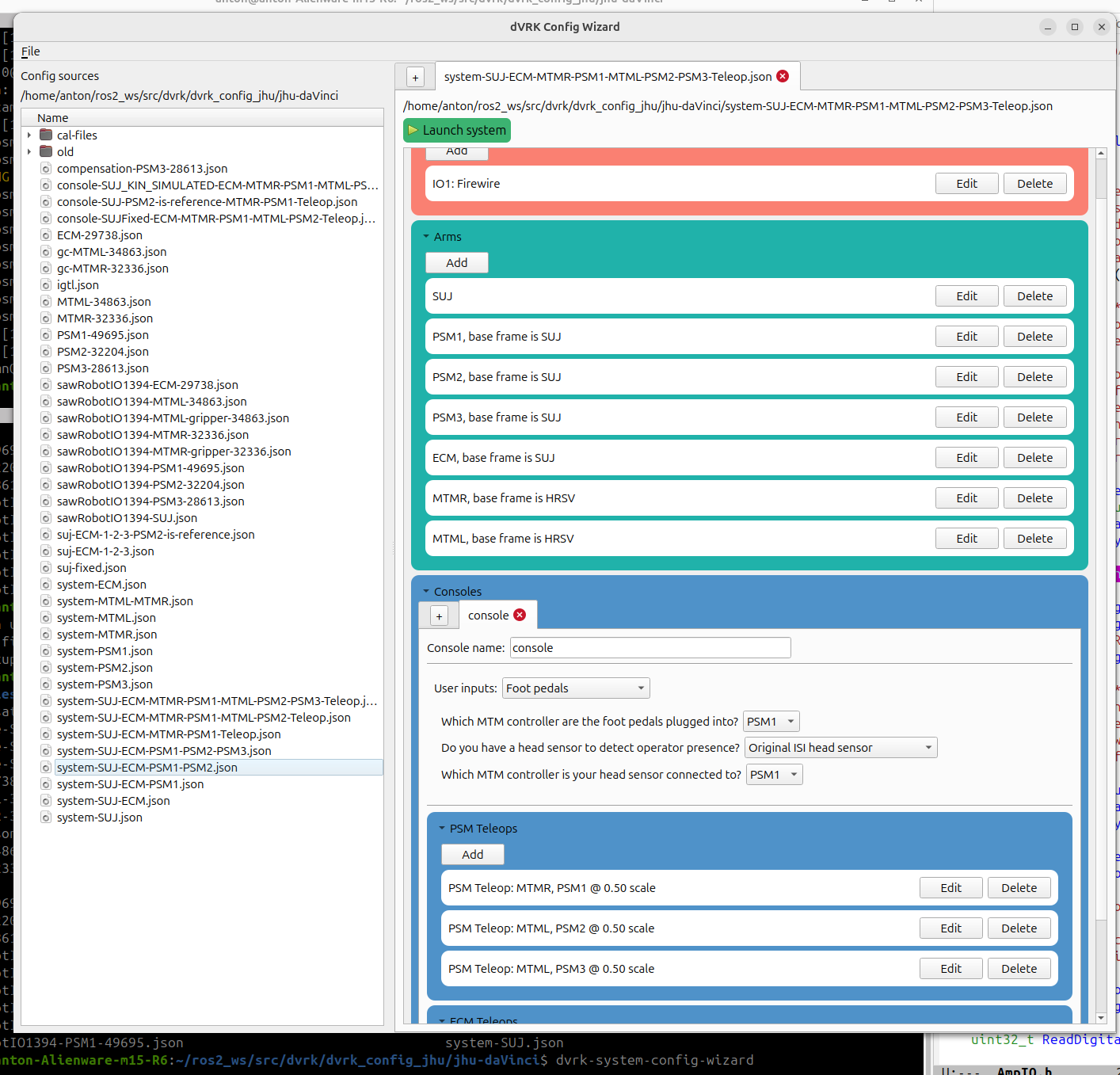
dVRK system configuration wizard, loading an existing file
The system wizard can also be used to open and edit an existing system configuration file.